
Your data model, in your repo.
Design visually. Build with AI. Review alongside your code.



Install for VS Code • Open VSX (VSCodium, Cursor, Windsurf) • Free to use, source available
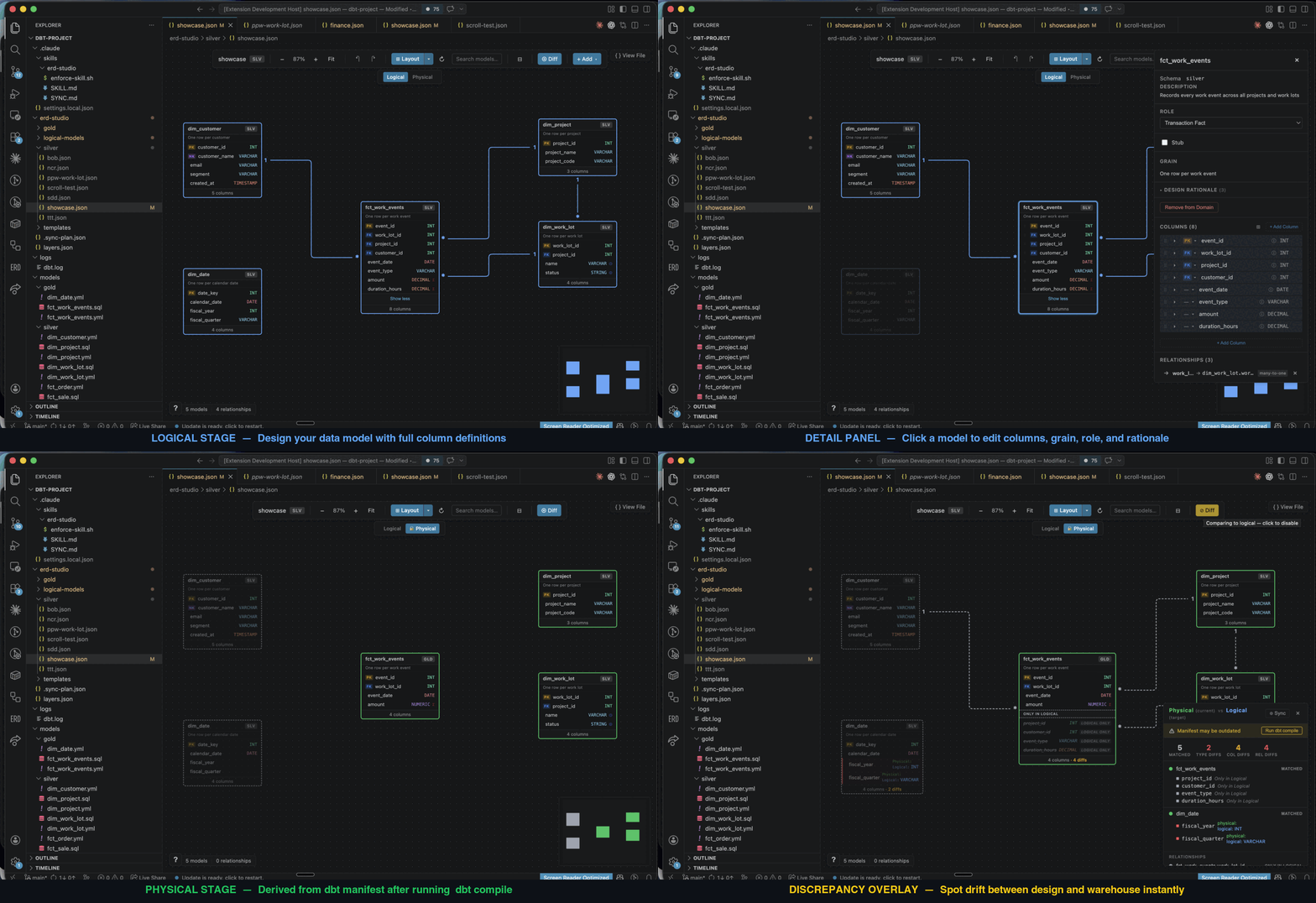
ERD Studio brings visual data modelling into VS Code. Keep your diagrams and design decisions in your code repo, give your AI assistant the context to build from them, and review design changes alongside the SQL.
- Give AI a design to build from. Capture grain, keys, relationships, and the reasoning behind them. Your assistant can use that context to draft dbt models and tests.
- Review the model before the SQL. Design on the canvas or ask your AI to propose a schema, then inspect and refine it visually.
- See where design and dbt disagree. Compare your logical model with your dbt schema and manifest. Missing columns, type differences, and relationship mismatches appear on the canvas. Generate a sync plan for your assistant to apply the changes you choose.
- Keep design and code in one review. Commit both in the same pull request, with readable diffs and a shared history.
- Run a whole domain together. Automatically generated dbt selectors let you build the models in a diagram with one command.
Traditional ERD tools such as erwin store models in application-specific files or a separate modelling repository. ERD Studio's plain files fit directly into your branches, pull requests, and AI workflow. Less setup, fewer handoffs, and no export step to give your AI the design.
The whole logical model is just two kinds of file: one YAML per model, one JSON per diagram. ERD Studio reads them and renders the canvas.

Edit on the canvas and those same files update. Edit them yourself or with AI and the canvas updates. Models are shared across diagrams, and everything stays in Git. No ERD Studio account, database, or server required.
The Physical view, the green canvas above, has no file of its own. It reads three files, and only the first is required: your schema YAMLs, always on disk, so the view works before you have ever run dbt; manifest.json after a dbt run; and catalog.json after dbt docs generate — the only one of the three that has seen your warehouse.
Each model shows where its shape came from, so a varchar on the canvas is never a guess: types are read from the warehouse when the catalog is there, otherwise from the data_type: you wrote, otherwise left blank rather than invented. A greyed-out model means it is genuinely not in your dbt project, not that you have not run dbt lately. And the edges are the tests you already run — relationships for the links, unique for the cardinality — so the canvas shows what dbt enforces rather than a second copy that can drift. Nothing is ever written to disk.
dbt is the only stack ERD Studio can read today. If you model somewhere else, contribute an integration or propose one — your logical model files stay exactly as they are as support grows.
Requires VS Code 1.85+ and a project containing dbt_project.yml (see logical-only setup). The Physical view needs nothing beyond your dbt schema YAMLs, and gets richer once manifest.json and catalog.json exist.
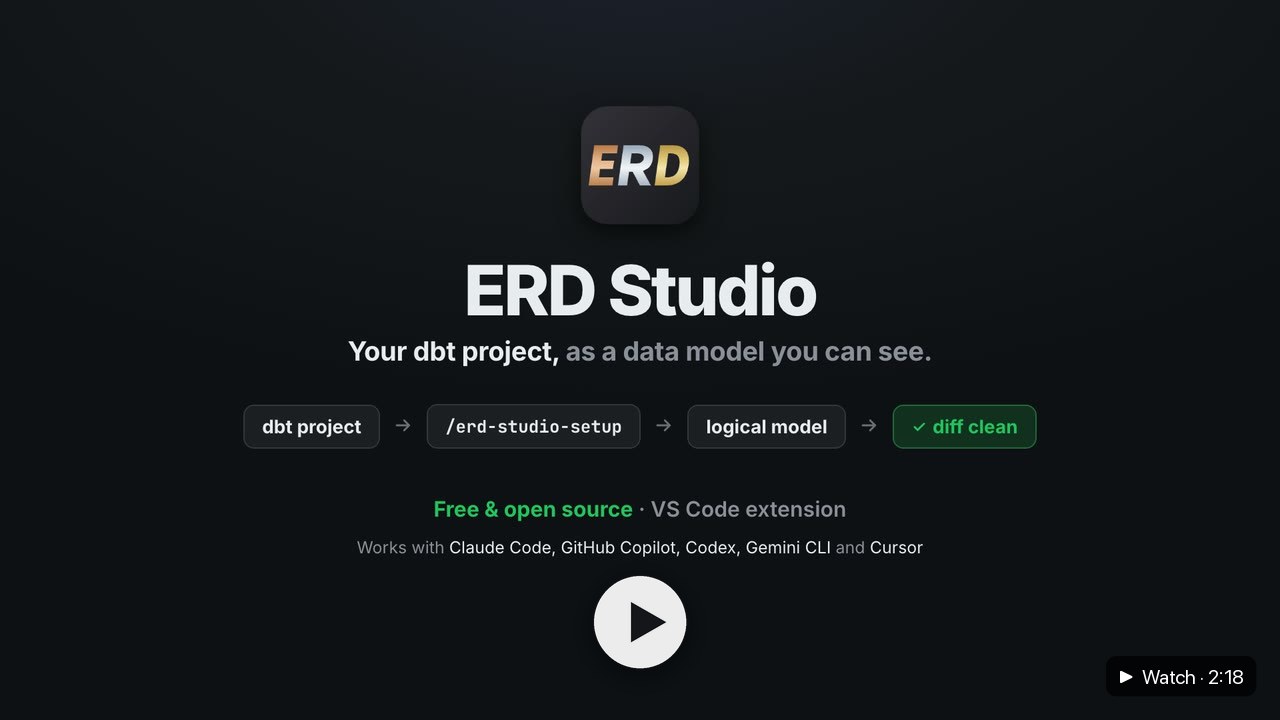
New to ERD Studio? Watch the short getting-started video. After you install, ERD Studio opens a Welcome tab the first time you use it, with the same video and a short setup checklist. Open it again any time with Get started in the ERD Studio sidebar (or its ▶ button), or ERD Studio: Watch Getting Started Video.
No dbt project yet? Try the ERD Studio sample project: a small Kimball-style dbt project with fake coffee-shop data that runs on your computer (DuckDB, no account needed). It ships its dbt artifacts, so both the Logical and Physical views work without installing dbt. Run ERD Studio: Try the Sample Project (also on the Welcome tab) and VS Code clones it to a folder you choose and offers to open it, or use Code → Download ZIP on GitHub and open the unzipped folder.
Quickest route, with your AI assistant: click Set Up My AI Helper on the Welcome tab, or run ERD Studio: Set Up My AI Helper. It installs a guided setup for the AI assistants it finds on your computer, then shows exactly what to type in each. Start your assistant in your dbt project folder and:
| Assistant | Type |
|---|---|
| Claude Code | /erd-studio-setup |
| GitHub Copilot (Agent mode, or the Copilot CLI) | /erd-studio-setup |
| Codex | $erd-studio-setup (or pick it from /skills) |
| Gemini CLI | Set up ERD Studio for this dbt project |
| Cursor | /erd-studio-setup |
The guide:
- checks that dbt is installed and set up, and helps fix it if not;
- asks which part of your project to model;
- works out how your project is already modelled — a medallion or staging → marts layout, Kimball, Data Vault, One Big Table or Activity Schema tables — from its names, folders, snapshots and packages, and confirms it with you in one sentence (a plain yes is enough, or describe your own rules); it then looks up that standard, plays the rules back to you and saves them in
.erd-studio/modelling-approach.mdso later AI edits follow them too. When it can't see a particular style, it draws your model exactly as dbt has it instead of making you pick one; - builds the logical models from your dbt project, applying those rules;
- compares them with the Physical view, and fixes the differences until the two match.
It uses a small read-only erd-studio helper that ERD Studio installs in ~/.erd-studio-cli. Your assistant still asks before it edits any file.
The guide is an Agent Skill: Claude Code reads it from .claude/skills/, and GitHub Copilot, Codex, Gemini CLI and Cursor read the copy in .agents/skills/. It has been tested end to end with Claude Code; the other four read the same skill from the open standard's folder.
Or step by step:
- Install ERD Studio and open your project in VS Code.
- Click the ERD Studio icon in the Activity Bar, choose Set Up ERD Studio, and follow the prompts to create your first domain (a diagram).
- Design models on the canvas, or add existing dbt models. If you use dbt, switch between Logical and Physical to compare your design with it.
- To work with AI, run ERD Studio: Install AI Coding Harness from the Command Palette. It adds project instructions for Claude Code, the Agent Skills folder (GitHub Copilot, Codex, Gemini CLI, Cursor), GitHub Copilot's instructions file, Gemini, or Codex's
AGENTS.md.
Then try asking your assistant:
Read my source models and propose a star schema for orders in ERD Studio. Include grain, keys, and design rationale. Let me review the diagram before generating dbt code.
A VS Code window shows one dbt project at a time. In a multi-root workspace or a monorepo, ERD Studio opens the project that already has an .erd-studio folder, and falls back to the first dbt project it finds. When there's more than one, the first row of the ERD Studio sidebar shows which project is open.
To choose another project, click that row, or run ERD Studio: Select dbt Project…. VS Code then reloads the window to open the project you picked. Your choice is saved for that workspace on your machine only, so it never ends up in a settings file your team commits. Auto-detect, at the top of the list, clears your choice.
To choose the project for everyone who opens the workspace, set erdStudio.projectPath in the workspace settings. That is the settings block of the .code-workspace file, or .vscode/settings.json for a single folder. Use a relative path so the setting works on every machine. ERD Studio tries it against each workspace folder in turn, so in a multi-root workspace whose folders sit side by side, ../datamodels points at the datamodels folder. The setting takes priority over the picker. In a multi-root workspace ERD Studio reads it from the workspace level only: a value in one folder's own .vscode/settings.json is ignored.
If you open a diagram that belongs to a different dbt project than the one ERD Studio has open, ERD Studio doesn't draw it against the wrong project's data. It offers to switch projects instead.
Use ERD Studio for your logical models: design tables, relationships, and business rules without installing or running dbt.
For now, add a dbt_project.yml file containing name: logical_models to your project root and reload VS Code. The extension still uses that file to recognise the project; no dbt build or warehouse connection is needed for logical modelling.
Physical comparison needs dbt, so the canvas stays on the Logical stage — everything else works unchanged.
ERD Studio sends one small, anonymous usage report a day, so the author can see which features get used and which errors people hit. It never contains model, column, domain or project names, file paths, file contents, error messages or anything you typed.
What is sent. For the previous UTC day, if you used ERD Studio that day:
| Field | What it holds |
|---|---|
v |
The report format version (1) |
installId |
A random ID, made up by ERD Studio and replaced every 30 days. It is not VS Code's machine ID and is not derived from anything about you |
day |
The UTC date the counts describe |
extVersion, vscodeMajor, os |
ERD Studio version, VS Code version (major.minor only), and darwin / win32 / linux / other |
tenure |
Days since ERD Studio first ran, as a range: 0, 1-7, 8-30, 31-90, 90+ |
activation |
Whether a dbt project was found (project_found / no_project) |
hasSemanticDir |
Whether the project has an .erd-studio folder |
domainCount |
Number of diagrams, as a range: 0, 1-3, 4-10, 10+ |
activations, canvasOpens |
How many times ERD Studio started and a diagram was opened (capped at 50 and 200) |
stages, schemaFormats |
Which stages were viewed (logical, physical) and which diagram file formats were opened (v5, v4) |
modelCount |
The largest diagram opened, as a range: none, 1-10, 11-50, 51+ |
manifest, catalog |
Whether dbt's manifest.json was ok, missing or stale, and whether a catalog.json was present |
features |
How often each of a fixed list of features was used (capped at 100 each): the physical stage, compare, sync plan, Execute with Claude, dbt compile, notes, auto layout, adding a model, adding a relationship, installing each AI harness, migrating to v5, and opening Send Feedback |
errors |
How often each of a fixed list of error kinds happened (capped at 100 each): manifest missing / malformed / timed out, catalog unreadable, diagram failed to load, model file failed to parse, invalid layers.json, edit rejected by VS Code, migration failed, other |
The full list of properties is also in telemetry.json.
Where it goes. An HTTPS request to erd-studio-telemetry.w2solutions.ai, a Cloudflare Worker run by the extension author. The Worker checks every field against the lists above and stores only those fields. It does not store your IP address, user agent or any other request header. Individual reports are deleted after 90 days; after that only daily totals are kept, with no install IDs.
Turning it off. Either setting stops it completely:
- VS Code's own
telemetry.telemetryLevelset tooff(ERD Studio also respectserrorandcrash, which send no usage data), or erdStudio.telemetry.enabledset tofalse. This setting can only turn telemetry off, never on, and only your user settings count — a repository's.vscode/settings.jsoncannot change it.
Turning telemetry off also throws away anything already counted for that day. A failed send is dropped, never retried.
Seeing what is sent. Reports go through VS Code's own telemetry logger. Run Developer: Set Log Level…, set the telemetry log to Trace, then open the Output panel and choose Extension Telemetry: each report appears there as it is sent. VS Code's --telemetry command-line flag also lists every event ERD Studio declares.
File format reference · Release notes · Send feedback · Contribute on GitHub
Free to use under the PolyForm Shield License 1.0.0: use it, modify it and share it, at home or at work, for any purpose except offering a product that competes with ERD Studio. The source is public; only the author may sell it or relicense it.